See the grain
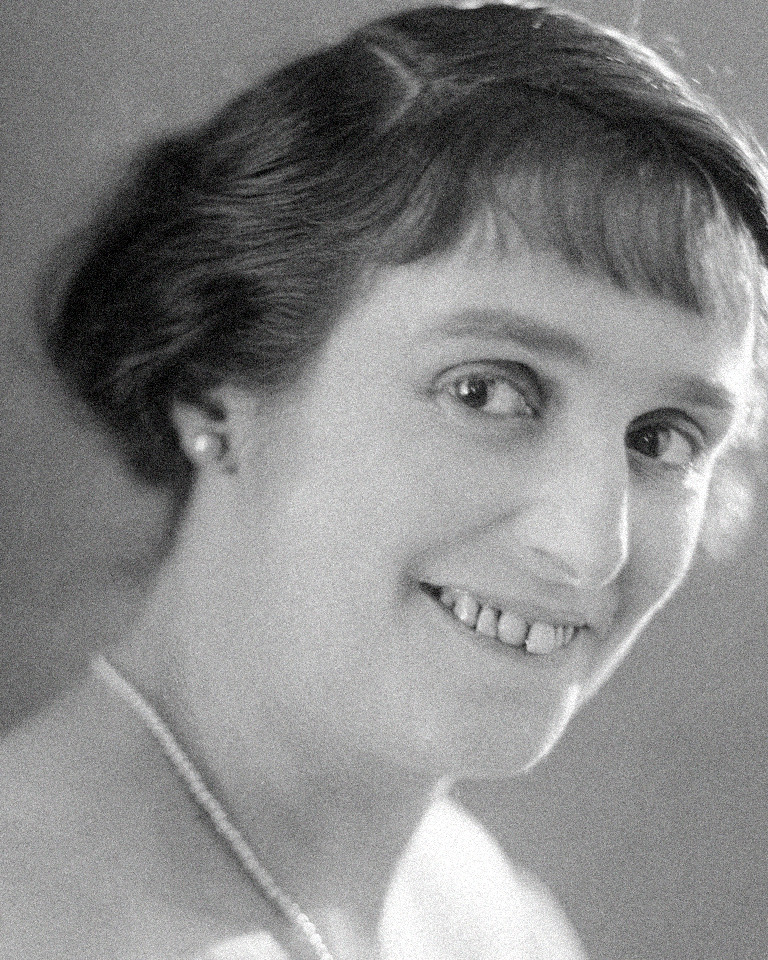
A real portrait, before and after, so speckles are obvious on skin and in shadow.
Fix grainy photos here and see a free 100% before/after preview in seconds. No signup.
Drop your grainy photo here
JPG, PNG, WebP, HEIC · up to 20 MB ·


Drag to compare. This After was made with SCUNet. Uploads still use the lightweight filter.
A real portrait, before and after, so speckles are obvious on skin and in shadow.
JPEG, PNG, WebP, or HEIC. The preview shows the noisiest area at 100%.
The free preview stays in this browser. Photos are not saved on a server.
The live preview is a light filter. It does not invent features that were not captured.
Grain is the speckled look from high ISO, dim light, or a small phone sensor. You can quiet it on your phone, in Lightroom or Photoshop, or with the preview on this page. Find the noise, lower it carefully, and check the result at 100%.
Photos look grainy mainly because of digital noise. In low light, the camera raises its ISO to make the image brighter, and that also amplifies random noise from the sensor. Small phone sensors, underexposed shots brightened later, heavy compression and scanning film prints can all make grain more visible.
ISO is how much your camera amplifies the signal from its sensor. Higher ISO means a brighter photo from less light, but also more visible noise. Indoors, at night or at a concert, cameras often pick ISO values that show clear grain.
If a photo is too dark and you raise the exposure afterwards, you also raise the noise hidden in the shadows. That's why a photo that looked fine on the camera screen can look grainy after editing.
Phone sensors are tiny, so they collect less light than larger camera sensors. Phones compensate with software processing, and the grain you see is what's left when that processing hits its limit, especially with digital zoom.
Every time a photo is saved as a JPEG or sent through a messaging app, some detail is lost and blocky artifacts can appear. These look like grain but are different from sensor noise. Starting from the original file gives better results.
Film has natural grain, and scanning can add more. Some people like that look. If you do, lower the noise removal or raise Keep texture so some grain stays.
iPhone sensors are small, so in dim light the camera raises its ISO and relies on software processing to brighten the image. That processing has limits, especially in night scenes and with digital zoom. Newer models help, but the physics of a small sensor in low light stays the same.
Grainy photos have speckles or colored dots, blurry photos have soft edges everywhere, and pixelated photos show visible squares. A denoiser fixes grain. Blur needs sharpening, and pixelation comes from low resolution or heavy compression, which no tool can fully undo. Zoom in to 100% to tell which one you have.

Fine speckles or colored dots, strongest in shadows and dark areas.
What to do: Use this tool. Start with Auto and adjust Keep texture.

Edges look soft everywhere, even in bright areas. Grain may not be visible.
What to do: Tick Add light sharpening. Heavy blur, like a badly missed focus, usually can't be fully fixed.

Visible squares or "mosaic" patches, often after heavy compression or enlarging a small image.
What to do: Denoising can soften the blockiness, but it can't bring back detail that was never captured.
Looking for how to fix blurry photos online for free? Blur needs sharpening, not noise reduction. Tick "Add light sharpening" for mild softness. Heavy blur, like a badly missed focus, usually can't be fully fixed by any tool.
Many photos have more than one problem. A dark phone shot can be grainy and a bit soft at the same time. If you're not sure, upload it and compare the 100% preview. If the speckles disappear and edges still look soft, add light sharpening.
On a phone, start with the built-in Noise Reduction slider. For stronger grain, or for JPEG and HEIC files, use an online noise remover. If you shoot RAW, Lightroom's Denoise and Photoshop's Camera Raw give the most control. Free online editors are fine for one-off fixes.
| Method | Best for | Effort | Cost |
|---|---|---|---|
| Phone photo editor | Mild grain on iPhone or Android | Very low | Free |
| Online noise remover (this page) | Phone and camera JPEG, PNG, WebP, HEIC; quick one-off fixes | Very low | Free preview and free download up to 2 MP; full resolution uses credits |
| Lightroom | RAW (AI Denoise) or JPEG/HEIC with manual sliders | Medium | Subscription |
| Photoshop | Detailed control and layers | High | Subscription |
| Other free editors (Canva, Adobe Express, Picsart and others) | Quick fixes inside an editor you already use | Low | Free tiers and limits vary |
iPhone:
It works well on mild grain. On heavy low-light grain it can't do much, and pushing it too far makes details look smeared. Some iPhone models and iOS versions show the tools slightly differently.
Android: editing tools differ by brand and app. Look for adjustments such as Noise reduction, Denoise or Detail in your gallery app, or in Lightroom mobile's Detail panel. The online method below works in any mobile browser.
Use the original file if you can. Photos that went through a messaging app are already compressed, which adds blocky artifacts on top of the noise and makes the result harder to clean up.
RAW photos: open the photo in Develop and use Denoise in the Detail panel (or Photo → Enhance in Lightroom Classic). Pick an amount, start around the middle, and check at 100% zoom.
JPEG or HEIC photos: AI Denoise isn't available, so use the manual sliders in the Detail panel. Raise Noise Reduction → Luminance a little at a time to smooth speckles, add Color to remove colored dots, and keep Detail high enough to avoid smearing. Many tutorials start around 30 and adjust from there.
If the result looks soft, raise Texture or Clarity slightly to bring back some bite.
Surface Blur can calm flat areas such as skies, but use a layer mask so edges and faces stay sharp.
Free online editors such as Canva, Adobe Express and Picsart, dedicated denoisers like Nero AI, and desktop apps such as GIMP (see Filters → Enhance) can all reduce noise. Free tiers differ: some add watermarks, limit file size or resolution, or ask you to sign in. Check the output at 100% zoom before you rely on it.
The same noise problem shows up at night, indoors, on old prints, and in close low-light shots. The comparisons below use those four situations.
Stage and street light push ISO up. Grain sits in hair and on the dark side of a face.
A lamp or a window is often not enough. Colored speckles show on skin.
Film grain and a scan on top of it. Scratches in the print are a separate problem.
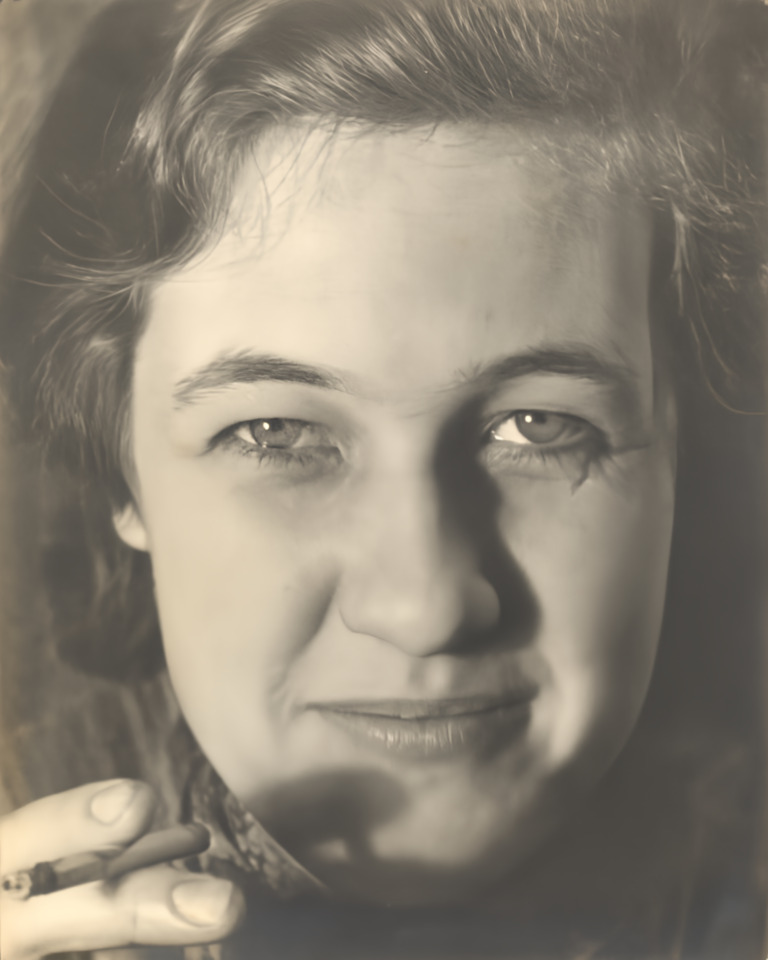
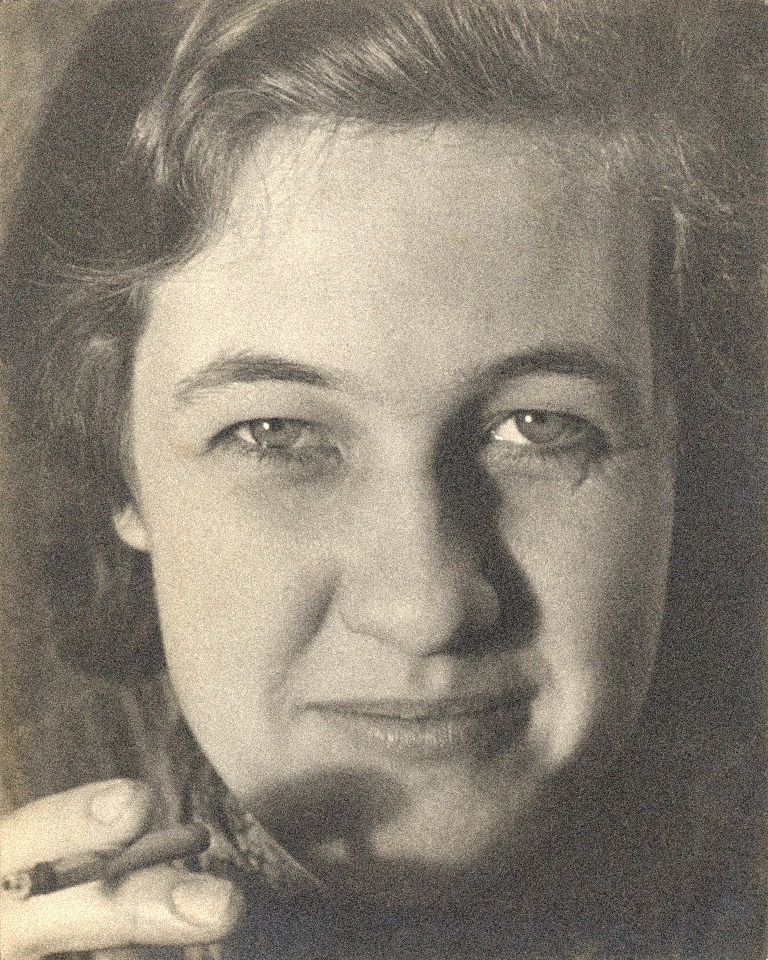
One side of the face falls into shadow, and that shadow is where the noise is loudest.
Each photo is a real portrait with synthetic high-ISO noise added. The After image was produced with SCUNet (the PSNR model), not retouched and not run through this page's live filter. Uploading a photo here still uses the lightweight filter until that model is connected. SCUNet clears the speckles and also softens fine skin texture.





To avoid grainy photos, lower your ISO, add more light, and expose correctly in the first place. Use a wider aperture or a slower shutter speed with a tripod when you can. Brightening a dark photo later raises noise, so it's better to get the exposure right when you take the shot.
On a camera, set a lower ISO manually or cap Auto ISO at a value you're happy with. On a phone, Pro or manual modes in some camera apps let you do the same. As a rule of thumb, many photographers try to keep ISO under about 800 when the light allows, but the right limit depends on your camera.
Turn on a lamp, move closer to a window or use a small light. More light is the most reliable way to avoid grain, and often the easiest.
A wider aperture lets in more light, so the camera needs a lower ISO. A slower shutter does the same for still subjects, but needs a tripod or a steady surface to avoid camera shake.
Photos taken too dark and brightened later show much more noise than photos exposed properly. When possible, tap to expose on your subject or use exposure compensation instead of fixing it afterwards.
To fix grainy photos, reduce the noise: use Noise Reduction in your phone's photo editor, the noise sliders in Lightroom or Photoshop, or a free online noise remover. Keep the strength low so skin and detail don't turn plastic, check the result at 100% zoom, and shoot with more light next time.
Grain looks like fine speckles or colored dots, strongest in shadows and dark areas. If edges look soft everywhere, you have blur instead. If you see visible squares, it's compression or low resolution. Not sure which one you have? See the comparison below.
Use the Noise Reduction tool in your photo editor, the Luminance and Color noise sliders in Lightroom or Photoshop, or upload the photo to the free noise remover above. Start gently and increase the strength a little at a time.
Too much smoothing makes skin and fabric look plastic. Raise Keep texture here (or lower the strength in other apps), add light sharpening only if the photo is also a little soft, then compare before and after at 100% zoom.
Save the cleaned photo as a new file so you can always go back. A 2-megapixel copy is usually enough for social posts and screens; export at full resolution for printing or cropping.
A noise remover smooths the speckles typical of camera noise while trying to keep edges and texture. It reduces grain; it doesn't erase every trace of it. It can't restore detail that was never captured, fix severe blur, or repair scratches. This tool uses a classical filter, not generative AI, so it won't redraw faces.
The before/after portraits on this page were prepared offline with SCUNet (PSNR). That model is not what runs when you upload a photo. The live preview is still the lightweight filter, until SCUNet is connected.
Our current filter works best on moderate noise. On very heavy noise, dedicated AI denoisers can clean up more, but they can also redraw details. We show a 100% preview and keep the original so you can judge for yourself.
Chat-based and generative editors rebuild an image from a description of what it should look like. That can produce a cleaner picture, but fine details, text and faces may be redrawn rather than preserved. If you need the photo to stay faithful to what was captured, use a dedicated denoiser and check the result at 100% zoom.
Denoising reduces speckles. Sharpening increases edge contrast to make a soft photo look crisper. Upscaling makes the image bigger. They solve different problems, so applying the wrong one can make a photo look worse.
Real previews.
You see a 100% crop of your own photo, not a downsized thumbnail, so the result you check is the result you get.
No watermark, no surprises.
Free downloads are up to 2 MP with no watermark. Full resolution is the only paid part.
Your photos stay yours.
Never saved on our servers, cleared from your browser after 1 hour. Never used to train AI.
Not happy with a result? Try a lower strength or a higher Keep texture. If a full-resolution result still isn't right, request a refund of that credit within 7 days.
Your photo is uploaded over an encrypted connection and processed in memory. It is never saved on our servers, and the copy in your browser is cleared after 1 hour. We don't use your photos to train AI or share them with other companies for their own use. You can clear a photo right away from the result page.
See our Privacy Policy for the details, and how to contact us about your data.
Previewing is free, and so is downloading up to 2 megapixels with no watermark. If you need the full-resolution photo, pay per photo with credits, or choose a Plus plan if you fix photos often. No auto-renewing free trial.
$0
Try it and download a web-size copy
from $4.99 for 20 credits
For one-off fixes. No subscription
$7.99/month or $49/year
For people who fix photos regularly
Larger credit packs: 80 credits for $12.99, 200 credits for $24.99. Prices in USD; taxes may apply. Payment isn't connected yet, so checkout on this page is simulated and nothing is charged.
Last updated: October 21, 2026
To fix grainy photos, reduce the noise: use the Noise Reduction tool in your phone's photo editor, the Luminance and Color sliders in Lightroom or Photoshop, or a free online noise remover. Start with a low strength, add back some texture so skin doesn't look plastic, and check the result at 100% zoom before you save it.
First check whether the picture is grainy or blurry. Grain is fine speckles and needs noise reduction; blur needs sharpening. Reduce the noise first, then add a little sharpening only if edges still look soft, and compare before and after at 100% zoom.
Open the photo in Photos, tap Edit, and use Noise Reduction in the adjustment tools, then raise Definition or Contrast slightly. It helps with mild grain only. For stronger noise, upload the photo to this page, which accepts HEIC files from iPhone, and check the 100% preview before downloading.
Photos look grainy mainly because of digital noise. In low light, your camera raises its ISO to brighten the image, which also amplifies random noise from the sensor. Small phone sensors, digital zoom, underexposed shots that are brightened later, heavy compression and scanned film prints can all make grain more visible.
Use more light, a lower ISO and correct exposure. In dim scenes, use Night mode or a wider aperture, and keep the camera steady with a tripod for slower shutter speeds. Avoid digital zoom and avoid brightening dark photos afterwards, because that increases noise.
Heavy grain can only be reduced, not erased. Use a stronger noise setting, check for areas that turn smooth or smeared, and bring back texture with Keep texture. If the photo is also dark, lightly lifting the shadows after denoising works better than brightening first. Detail that was never captured can't be recovered.
AI denoisers, such as Lightroom's Denoise for RAW files, can remove noise very well, but chat-based or generative editors may redraw details, including faces and text. This tool uses a classical noise filter, not generative AI, so it keeps the photo faithful but may clean very heavy noise less completely.
Your phone's built-in photo editor handles mild grain. For more control, Lightroom (including Lightroom mobile) and Photoshop have noise reduction, and free online editors such as Canva, Adobe Express and Picsart offer quick fixes. You can also use the free noise remover on this page, which needs no install.
Upload your photo to this page to preview a cleaned version for free, with no signup, up to 3 photos a day. You can download the result free up to 2 megapixels with no watermark. Full-resolution downloads use credits.
It can if the strength is too high. This tool starts with an automatic strength and has a "Keep texture" slider that blends back natural detail, so skin, hair and fabric don't look waxy. Check the 100% preview and lower the strength if details look smeared.
Grainy photos have speckles or colored dots from noise. Blurry photos have soft edges everywhere. Pixelated photos show visible squares from low resolution or heavy compression. Denoising helps with grain, sharpening helps mild blur, and pixelation can only be softened, not fully undone.
Often you can make it cleaner. Scan at a good resolution, upload the scan and use the 100% preview to check the result. Denoising calms film grain and scanner noise, but it doesn't repair scratches, creases or fading, and it can't restore detail the print no longer has.
Photos are uploaded over an encrypted connection, processed in memory and never saved on our servers. The copy in your browser is cleared after 1 hour, or right away when you press Delete now. We don't use your photos to train AI.
You can upload JPG, PNG, WebP and HEIC files up to 20 MB and 24 megapixels. RAW formats like DNG, CR3 or ARW aren't supported yet, so export a JPEG or PNG first.
Upload it, check the 100% preview, and decide. Free to try, no signup.
Or · See pricing


.jpg)
